March 5, 2026 • 6 min
AliExpress is now on AutoDealsBot
AliExpress is now available as a new affiliate integration on AutoDealsBot. Learn how to set up the API, use the new tags, and retrieve shipping information.

Daniele Capozzi
Developer
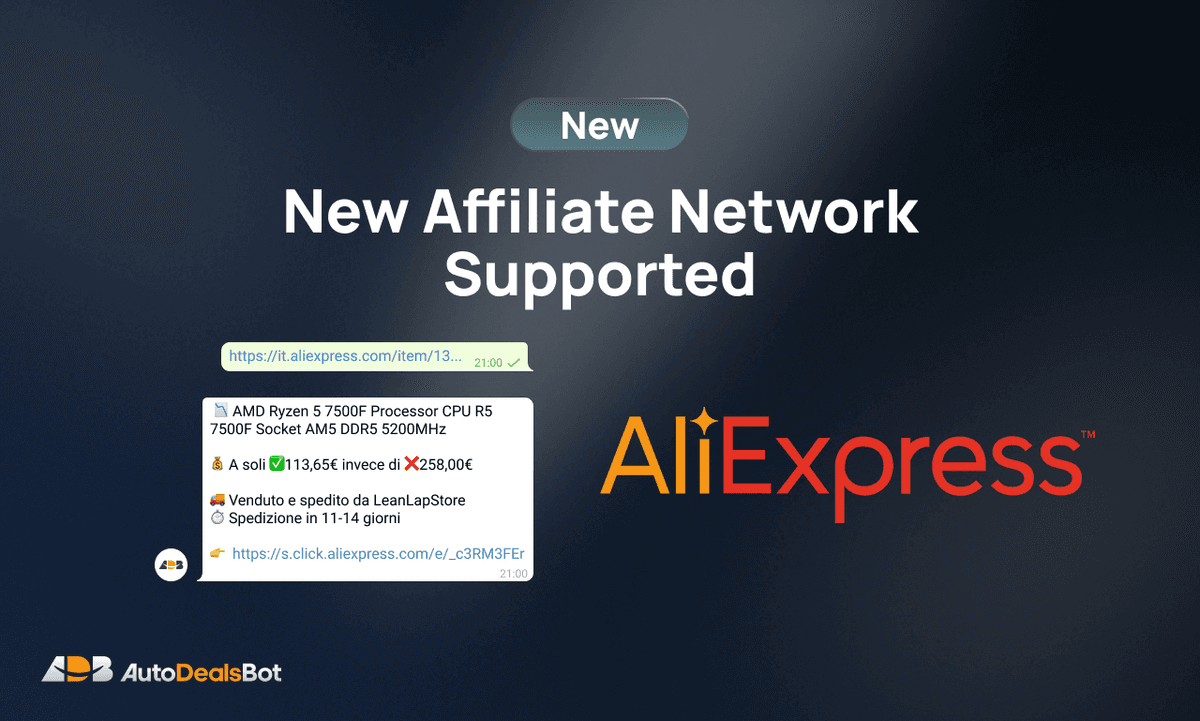
Great news for all AutoDealsBot users: AliExpress is now available as a new affiliate integration directly inside the bot!
You can create manual posts by pasting an AliExpress link, configure the API for each channel, and use the new tags to display shipping information in your posts.
What you can do with AliExpress
- Manual posts: send any AliExpress link to the Bot and it will automatically retrieve the title, price and image
- API configuration: set up your AliExpress credentials for each channel (App Key, App Secret, Tracking ID and target country)
- Advanced API: enable advanced mode to get detailed shipping information for each product
- Autoposting: AliExpress is now supported in Autoposting and Deal Summaries as well
- New format tags:
{fulfiller}{delivery}{shipping}
Supported countries
🇮🇹 IT • 🇩🇪 DE • 🇫🇷 FR • 🇪🇸 ES • 🇺🇸 US • 🇬🇧 GB
How to activate it on the Bot
Go to Channel Settings → Affiliate → AliExpress API, enter your credentials and select the target country. If you also want shipping data, enable the Advanced API option.
How to obtain AliExpress API credentials
The AliExpress integration requires access to the official APIs through the AliExpress Open Platform program. Here is a step-by-step guide to obtain them.
Note: if you are not yet registered with the AliExpress affiliate program, you can do so here. Approval usually takes a couple of days.
1. Register on the Open Platform portal
The Open Platform portal is separate from the standard affiliate portal, so a separate registration is required even if you are already an AliExpress affiliate.
Go to openservice.aliexpress.com and create an account.
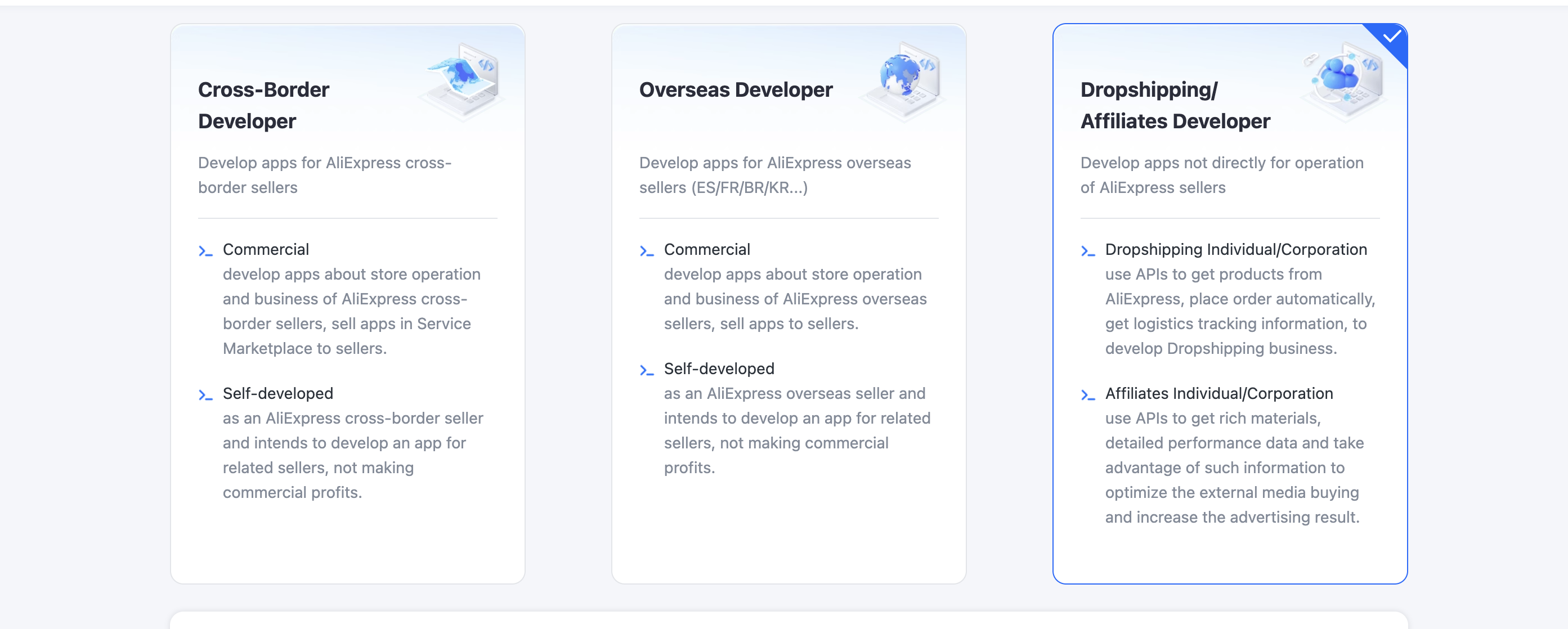
During registration you may be asked for your developer type: select "Dropshipping / Affiliates Developer" (the last option on the right).
2. Complete the Affiliate profile
Once logged in, click on your e-mail address in the top right corner and select "Profile".
Choose "Affiliate" (Individual for personal accounts, Corporation for businesses) and fill in all the required fields.
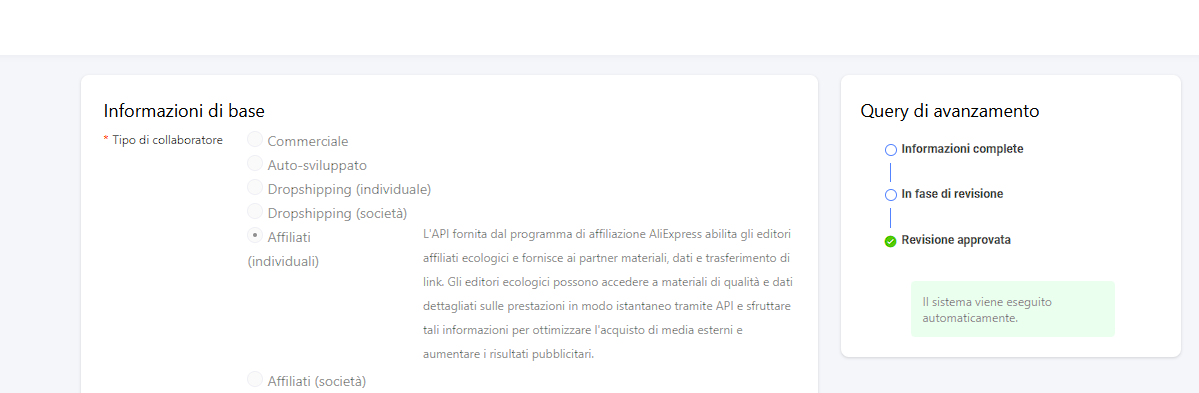
This request is also approved within a few days, after which you will receive a confirmation e-mail.
3. Create the app on the portal
After approval, return to openservice.aliexpress.com and log in.
From the top menu select App Console → App Console, then click the blue "Create" button and then "Create App" next to "Affiliate".
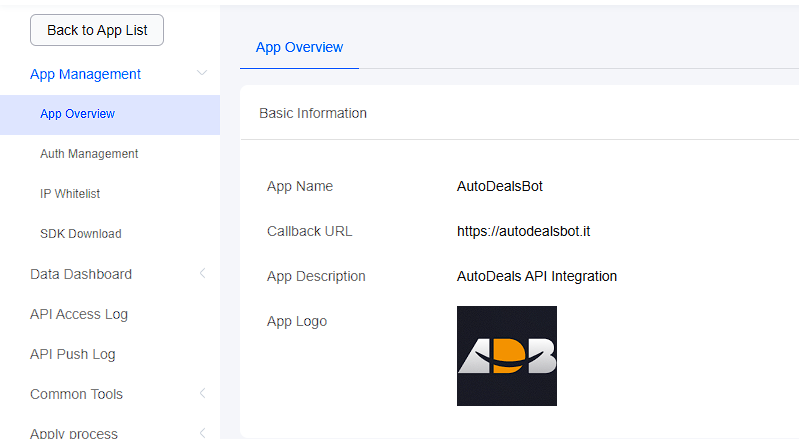
You can download the official app logo below:

Click "Submit" to send.
4. Obtain App Key and App Secret
Go back to App Console, find the app you just created and click "Manage".
In the "Advanced Informations" section you will find:
- App Key — the numeric key to enter in the bot
- App Secret — the alphanumeric secret key (visible by pressing "View") to enter in the bot
5. Request the Advanced API (optional, for shipping info)
On the same page, scroll down to the "API Permission Group" section.
Find the "Advanced API" row, click "Apply" and in the "Reason" field write:
Required to retrieve product shipping details such as origin warehouse, estimated delivery time and shipping costs
Submit with "OK". Approval arrives in a few days via e-mail. Once approved, the bot will be able to retrieve shipping information for each product.
Bot configuration
Once you have your credentials, go to the bot at:
Settings → REF → AliExpress REF → Configure API
Enter in order:
- App Key (numeric key)
- App Secret (alphanumeric key)
- Tracking ID — retrievable from your AliExpress affiliate account. Pay attention to uppercase/lowercase: the Tracking ID must be entered exactly as it appears on the AliExpress portal
Select the target country and, if you have obtained access to the Advanced API, enable the relevant option to activate advanced shipping data.
Tags for shipping information
If the Advanced API is active, you can use these new tags in your text formats:
{fulfiller} — Shipping warehouse
Replaced with the name and flag of the shipping country, for example Italy 🇮🇹 or Spain 🇪🇸.
<b>Shipped from warehouse in {fulfiller}</b>
{delivery} — Estimated delivery time
Replaced with the estimated number of days, for example 4-8 or 3.
<b>Estimated delivery in:</b> {delivery} days
{shipping} — Shipping cost
Replaced with the shipping price of the product, for example 0.00 or 1.99.
<b>Shipping:</b> {shipping}€
⚠️ Important: if for any reason the value is not available, the entire line containing the tag is automatically removed. For this reason, that line should not contain other tags or text you always want to keep visible.
For any questions about the configuration you can contact support directly on Telegram: @AutoDealsAssistant